
See the end of this page for a PDF version of this guide.
When you are doing research on this website, whether about an individual student or about a broad topic like the school’s curriculum, keep three features in mind: the search, the sort or browse, and the tags.
You will probably start with a search or a sort—these are our main tools to narrow down all of the possible documents to those that are most relevant to your research.
The Search Function
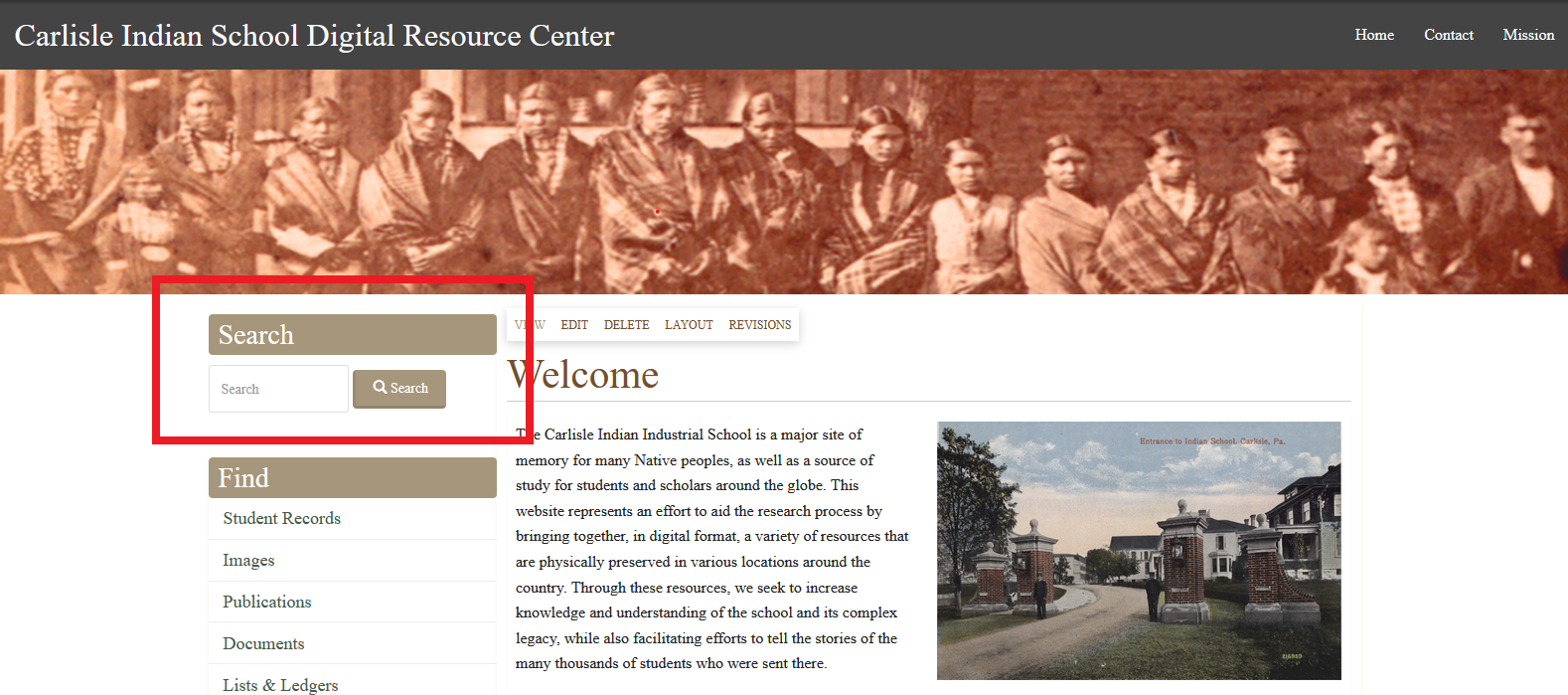
At the top of the navigation bar on the left is a site-wide search box. If you search for something using that box, you will search all of the document titles and descriptions across the CISDRC. This search will also look for the words you chose in documents that have been OCR’ed—a process that makes them readable/searchable to your computer. On our site the main source that has been OCR’ed is the school newspapers (under Publications). The search function finds all other documents that are not text-searchable through their metadata—the description that has been created by CISDRC staff to help users of the site find what they are looking for. (Importantly, the tags are not searched through this search function.)
Find Menu
This website divides up the information into five main categories: Student Records, Images, Publications, Documents, and Lists and Ledgers. Clicking on any one of these terms under “Find” will take you to a landing page where you can search or browse that one type of information. For instance, if you are searching for an image of the school band—you can click on that category under “Find” in the left-hand menu and do a more specific search in the search box found in the top right corner of the landing page.
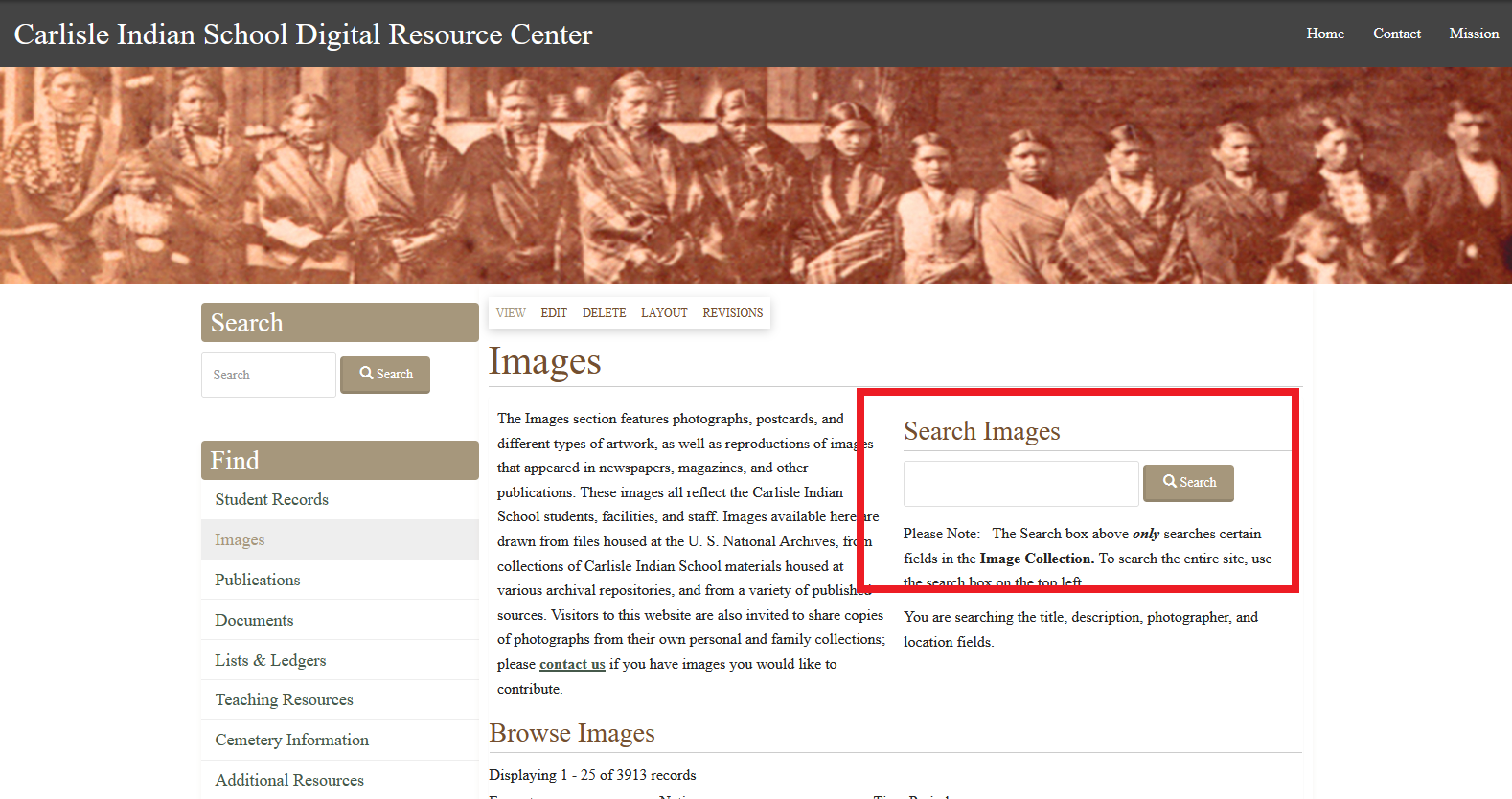
Please bear in mind that if you use the search box on the landing page of a single category you will only be searching certain information in that section. For example, when searching the student records, you are only searching the student file titles, brief descriptions, and location fields. You are not searching the actual student files. In the case of images, you are searching the title, description, photographer, and locations fields.
Additionally, if you want to search the contents of the school newspapers, you must do so with this search: https://carlisleindian.dickinson.edu/search-publications-solr. Once you open the PDF of an issue of a school newspaper, you can also search that individual file with Ctrl + F.
None of the searches are case-sensitive—you do not need to watch for exact capitalization—but all of them are sensitive to spaces. For tips on troubleshooting the search functions on this site, particularly for names, go to the help guide for troubleshooting the search: https://carlisleindian.dickinson.edu/node/33361/.
The Sort Function
When you click on Student Records, Images, Publications, Documents or List & Ledgers in the Find Menu to the left, you can also sort the material and browse without searching. Some of the options on the landing page will help you narrow down what materials you are seeing while other options change how the results appear. These options will narrow things down:
- In Student Records you can choose a specific Year of Entry, Nation, Document Type, or search for a name.
- In Images, you can choose an image Format, Nation, Time Period, or Repository.
- In Publications, you can choose a publication Format, Indian School Title (the publication title), or the Time Period.
- In Documents, you can choose a Format, Repository, Time Period, Topic, Year, and Standard Form (e.g. student enrollments lists).
- In Lists & Ledgers, you can choose a List Type (e.g. financial ledgers) and Time Period.
For Student Records, Images, and Publications, you can also choose how your results display.
“Sort by” changes what the website references to arrange the documents on the results page. The site can look at the date that each document was created (chronological) or can look at the title (alphabetical).
“Order” adjusts the order of results of your search. If you are looking at things chronologically, and “order” is “asc” the material will show up from the earliest date to the latest. (Note: Anything undated appears at the end of the results.) If you are sorting by title, the “asc” means that the documents starting with “A” will appear first.
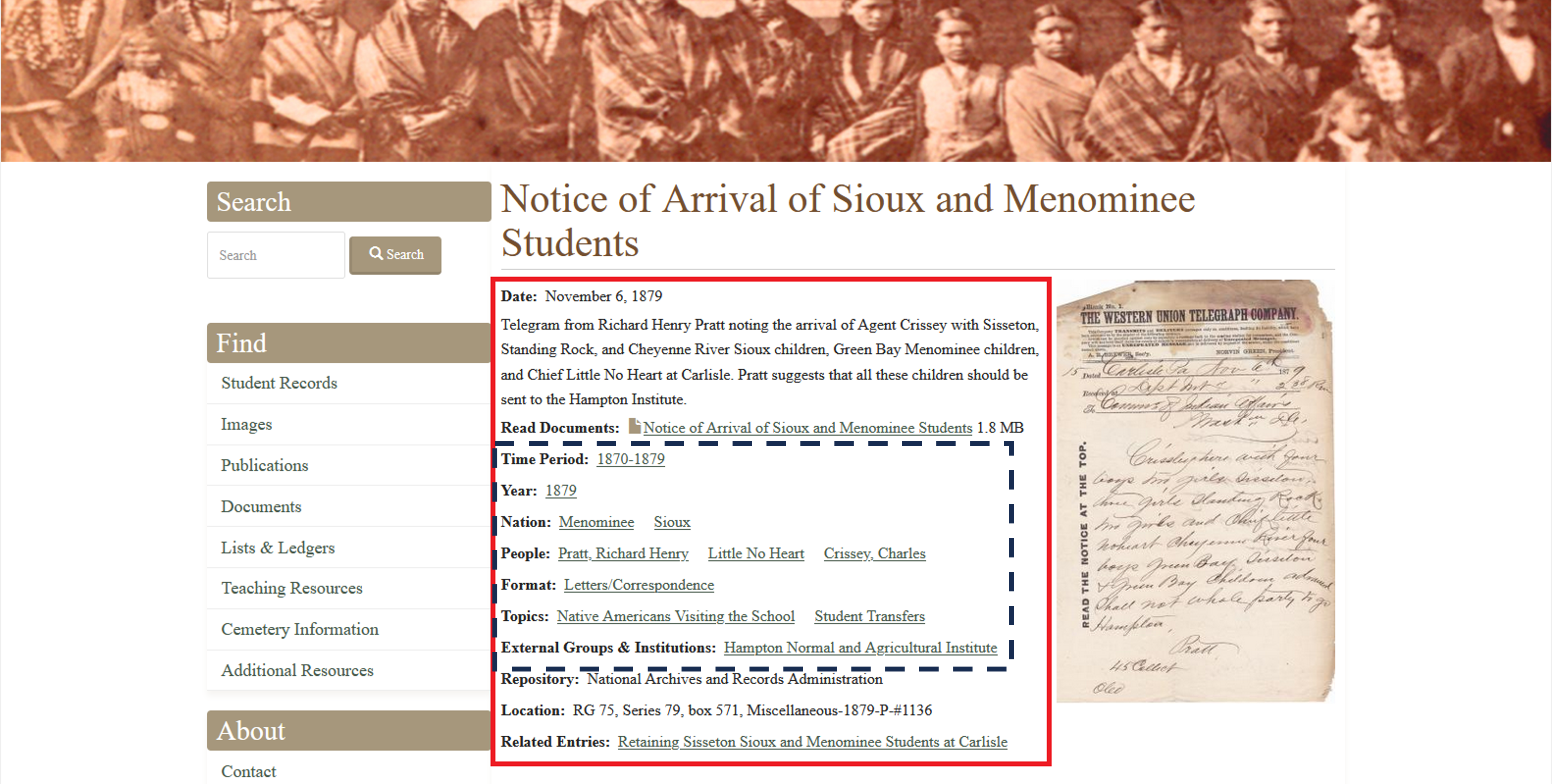
Once you find one document that is relevant, you can use that document’s tags to find similar ones. For example, you could look at other documents from the same year or those which mention the same person. In the screenshot below a random document is shown. The post’s metadata is highlighted with the solid-line square, and the tags you can click on are highlighted with the dash-line rectangle.
The tags function
If you click on any post on the CISDRC, there will be some tags which specify the people, places, dates or topics related to that document. These tags bring together material that shares something in common. (And this is what the the sort function is based on.) When you click on one of those tags, all posts that have also been tagged with that topic or person will appear in a list. Please bear in mind though that when you look at a tag, it is an incomplete list. Topic tags do not include student files and only a small selection of the newspapers have been tagged for all people mentioned in them.